System Relationships
How each layer connect and relate to other layers
High-Level System Relationships
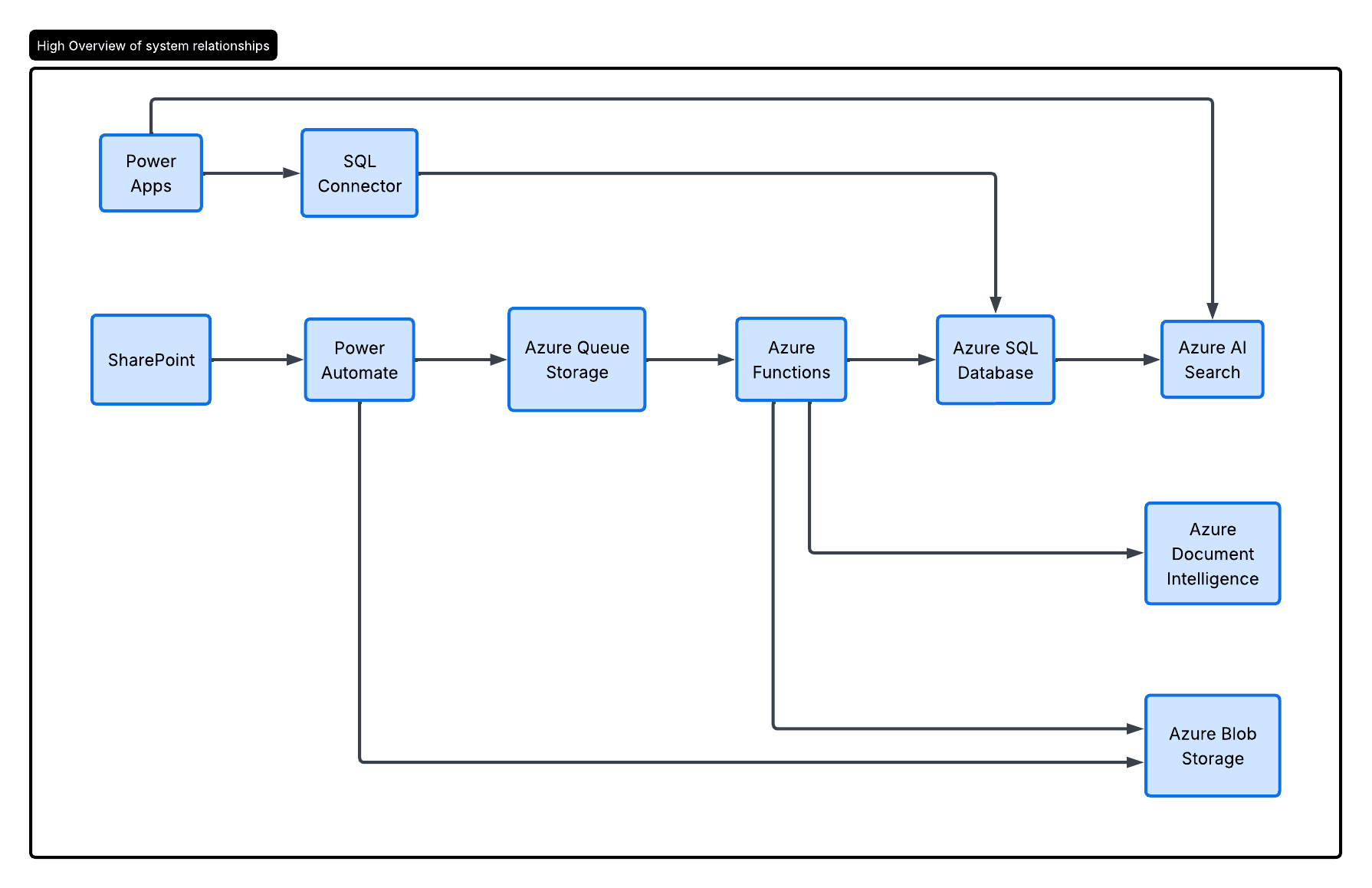
The Digital Archive takes refugee documents from SharePoint and processes them through a queue-based workflow. Power Automate reads them in, and each step (splitting, extracting, cleansing) happens independently on Azure Functions.
Documents live in Azure Blob Storage while they're being processed. Once extracted, the data goes to Azure SQL Database. After cleaning, it gets indexed in Azure AI Search so users can actually find things.
People search, review and correct records in Power Apps. The queue setup means if one step gets backed up or breaks, the others aren't stuck waiting—they just keep going.
Document Ingestion Pipeline
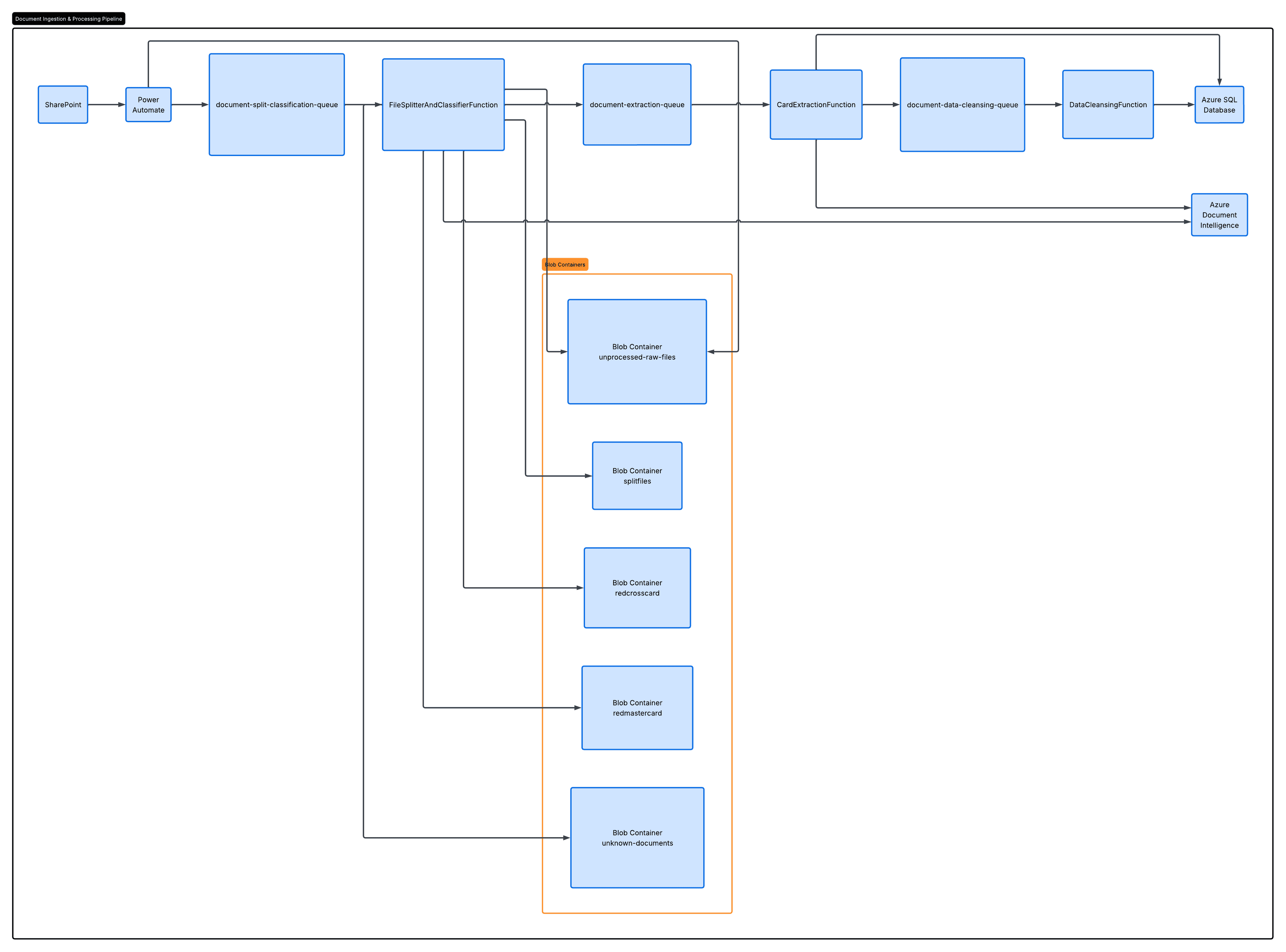
Upload documents to SharePoint. Power Automate picks them up, stores them in Azure Blob Storage, and creates a message in a queue to start processing.
Three Azure Functions listen to three different queues:
- Split & Classify — reads the document from Blob Storage, breaks PDFs into pages, identifies card type using Azure Document Intelligence
- Extract — pulls structured data (names, dates, families) from each page, also using Azure Document Intelligence, and saves everything to Azure SQL Database
- Cleanse — reads the extracted data from the database, runs business rules through SQL stored procedures to clean it up, and updates the database
Each function sits on its own queue. When a message arrives, the function wakes up and does its job. If something fails, it retries. If it keeps failing, it goes to a poison queue for manual review. Because they're decoupled through queues, one function getting backed up doesn't slow down the others.
User Flow
-
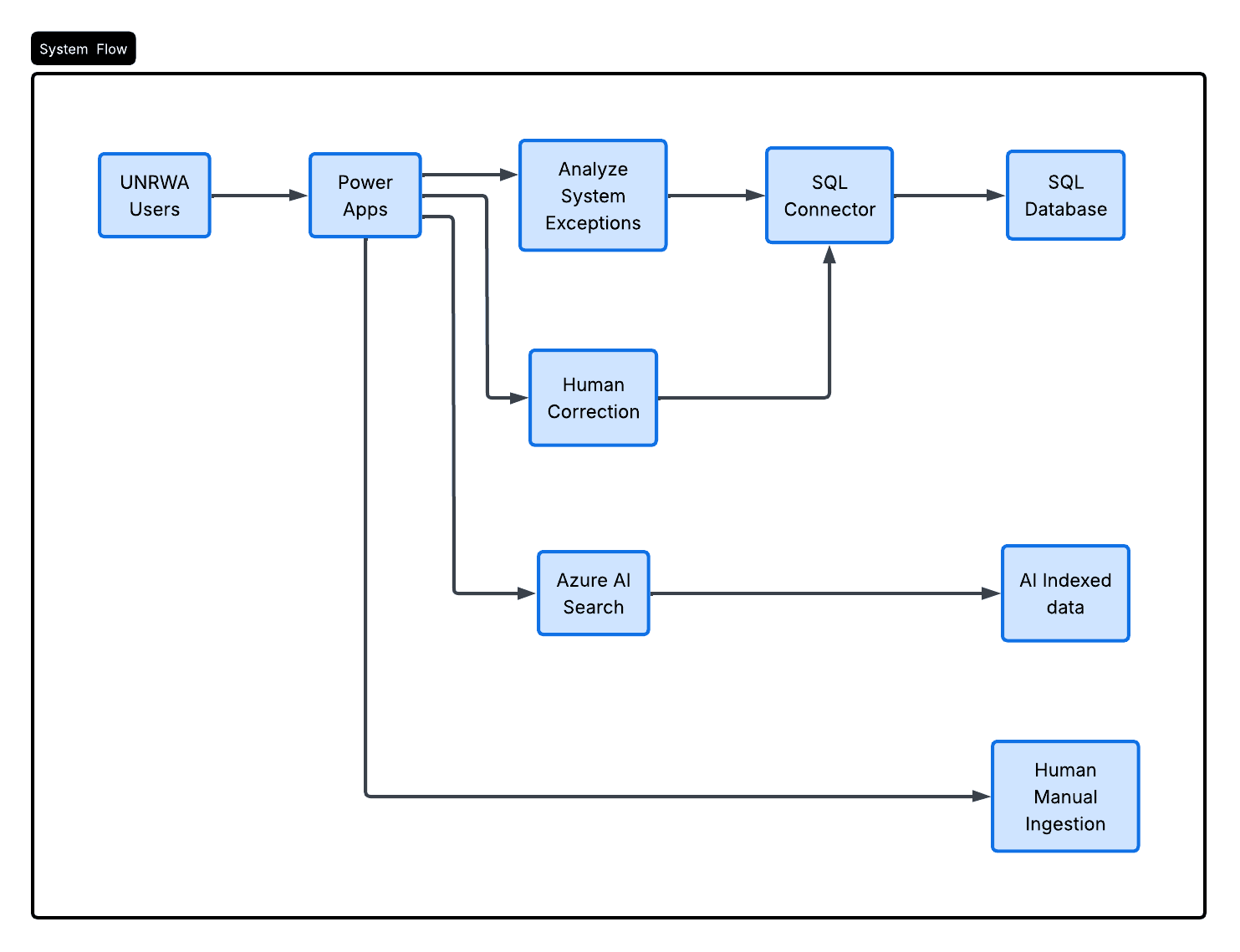
Review Documents One by One: Open Power Apps and see all your processed documents in a list. Click on each one to review the extracted data: names, dates, family relationships, addresses. Go through them one at a time.
-
Correct Data When It's Wrong: If the system extracted something incorrectly, fix it right in the app. Your correction goes straight to the SQL database.
-
Check What Went Wrong During Processing: The app shows you system exceptions from the Azure Functions. These are actual errors that happened when the system tried to process a document: NullPointer exceptions, timeouts, parsing failures, etc. You can see which documents failed and why, then decide what to do about them.
-
Manually Upload Missing Documents: Ingest document using file urls from SharePoint, Pass them to the ingestion workflow and see the results.
-
Search: Fast Data access for refugees documents through AI Azure Search
Error Handling
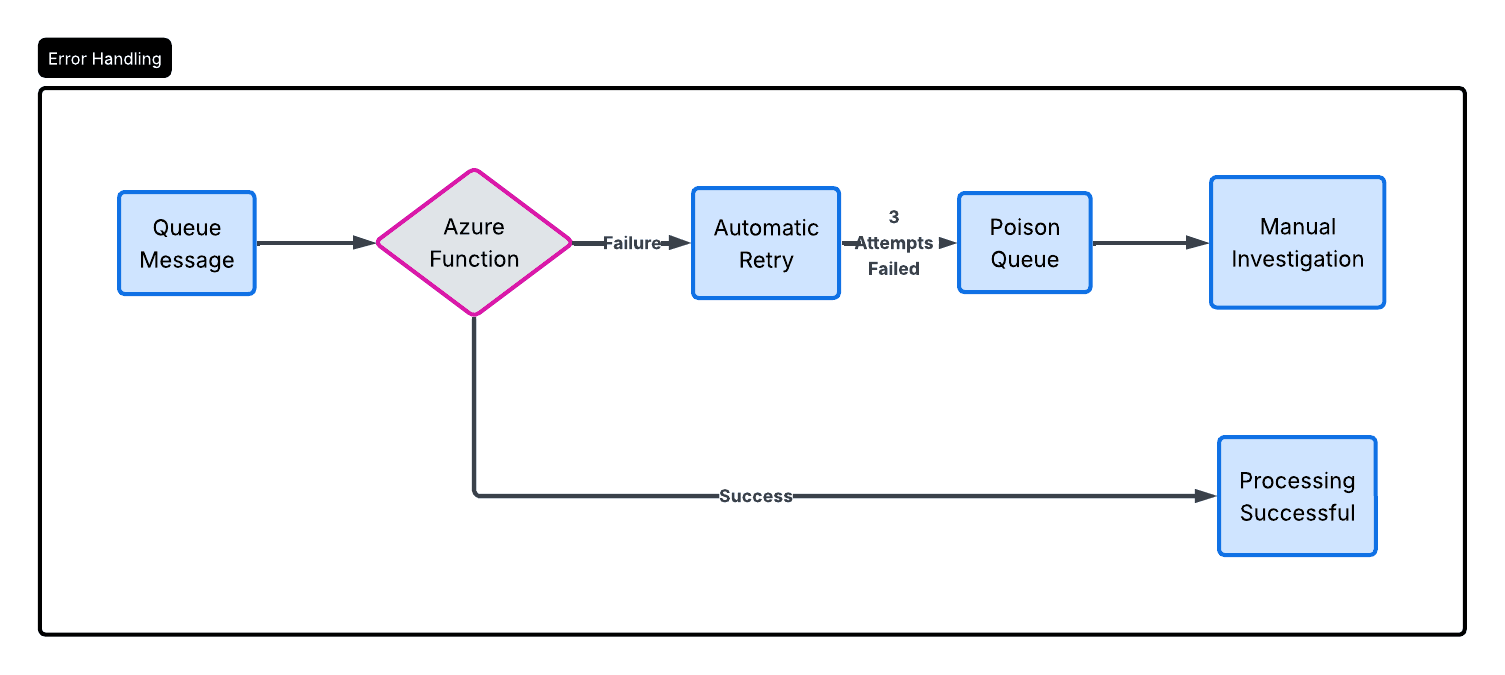
Documents that fail to process get retried automatically. If they still fail after 3 tries, they go to a poison queue. The team can review them later without slowing down everything else that's processing.
Set up alerts for poison queues so you notice when documents stack up there.